

SIM Card Inserted But No Service iPhone: Fix Carrier Error
Sometimes an iPhone may show signal bars disappearing or display a connection error even when the SIM card is properly inserted. A common issue many users encounter is a SIM card inserted but no service iPhone, which prevents the device from making calls, sending messages, or using mobile data. This problem can be caused by several factors, including temporary network issues, incorrect carrier settings, SIM card damage, or software glitches.
In some cases, simply restarting the device or checking the network settings can resolve the issue quickly. To understand the possible causes and learn practical solutions step by step, you can refer to the guide from TAG Mobile for more detailed information.
1. What “No Service” Means on an iPhone
Sometimes an iPhone may display the “No Service” message at the top of the screen, even when a SIM card is already installed. This message usually means the device cannot connect to the mobile carrier’s network, which can prevent calls, texts, and mobile data from working.
How Cellular Networks Work
A smartphone connects to a cellular network through the SIM card, which contains identification information assigned by the mobile carrier. When the SIM card is inserted, the iPhone communicates with nearby cell towers to verify the account and establish a network connection.
Once the carrier confirms the SIM details, the device can access services such as calls, messages, and mobile data. If this connection fails for any reason, users may encounter issues such as a SIM card inserted but no service iPhone, indicating the phone cannot establish communication with the carrier’s network.
Why an iPhone May Show “No Service”
There are several reasons why an iPhone might show a “No Service” message even when a SIM card is present. These issues can be related to the device, the SIM card, or the carrier network.
- Network coverage problems: The device may be located in an area with weak or no cellular signal, preventing it from connecting to nearby towers.
- SIM card not inserted correctly: If the SIM card is not seated properly in the SIM tray, the iPhone may fail to detect it.
- Carrier account or activation issues: Sometimes the SIM card may not be activated correctly by the carrier, which can block network access.
- Software or network settings problems: Outdated iOS software or incorrect network settings may interfere with the phone’s ability to connect to the carrier network.
- Damaged or faulty SIM card: A scratched or worn SIM card may no longer function properly and may need to be replaced by the carrier.
>>> Read More: SIM Lock iPhone: 2026 Guide to Unlocking and Lifeline Benefits
2. How to Fix “SIM Card Inserted but No Service” on iPhone
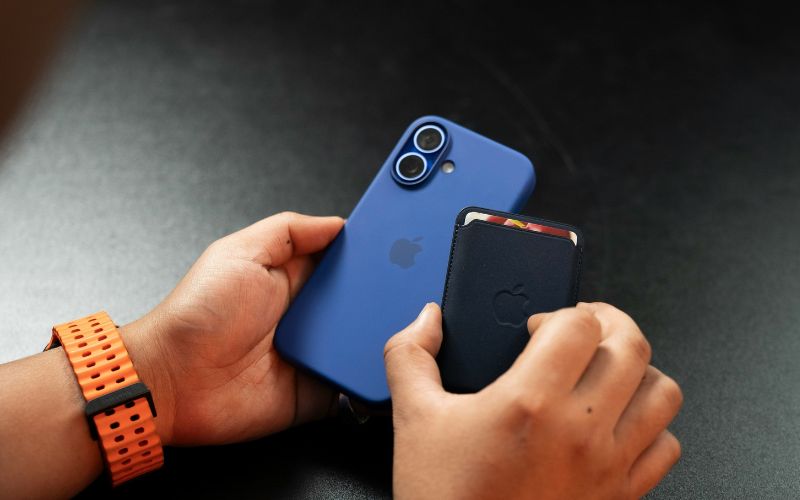
Sometimes an iPhone may fail to connect to the carrier network even when a SIM card is already installed. If you encounter the SIM card inserted but no service iPhone issue, several simple troubleshooting steps can help restore the connection and identify the cause of the problem.
Step 1: Remove and Reinsert the SIM Card
First, turn off the iPhone and remove the SIM card using a SIM eject tool or a small paperclip. After the SIM tray pops out, check that the SIM card is clean and positioned correctly in the tray. Then insert the tray back into the phone and power the device on again to see if the signal returns.
Step 2: Check for Carrier Settings Updates
Next, you should check whether the iPhone needs a carrier settings update, which helps the device communicate properly with the carrier network. Open Settings → General → About and wait a few seconds. If an update is available, the phone will display a prompt allowing you to install the update.
Step 3: Reset Network Settings
If the issue continues, resetting the network settings may help resolve configuration conflicts. Go to Settings → General → Transfer or Reset iPhone → Reset Network Settings and confirm the action.
This step clears stored Wi-Fi networks, cellular settings, and VPN configurations that might interfere with network connectivity.
Step 4: Update iOS
Installing the latest iOS software update can also help fix connectivity problems. Apple regularly releases updates that improve device performance and network compatibility. After updating the software, restart the phone and check whether the cellular signal appears again.
Step 5: Test the SIM Card in Another Phone
Finally, try inserting the SIM card into another compatible smartphone. If the SIM works normally in another device, the issue may be related to the iPhone itself. However, if the SIM still shows no signal, the carrier may need to replace the SIM card to fix the SIM card inserted but no service iPhone problem.
3. When “No Service” Means It Might Be Time to Reconnect With a New Plan
Occasionally, the “No Service” message is not caused by a temporary phone issue but by a problem with the SIM card or the mobile plan itself. If your device continues to show network errors even after troubleshooting, the SIM card may be inactive, outdated, or no longer supported by the carrier’s network.
In many cases, replacing the SIM card or activating a new plan can restore a stable connection. This is especially common when users switch carriers, keep the same SIM for many years, or move to a newer phone that requires updated network compatibility.
Consider a New SIM or eSIM Plan
When a SIM card stops working properly, activating a new SIM or eSIM plan can often solve the issue. Modern carriers now offer digital eSIM activation, which allows users to connect to a mobile network without inserting a physical SIM card.
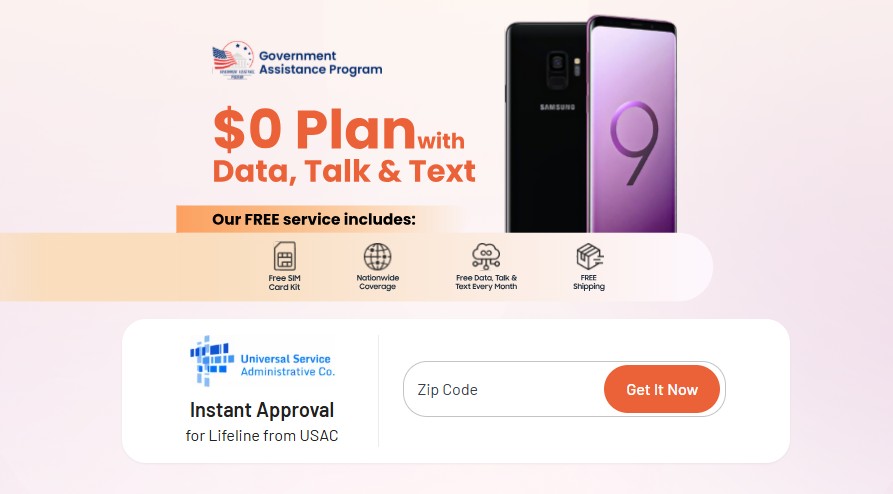
One provider that offers this option is TAG Mobile, a Lifeline-supported wireless carrier that helps eligible users access affordable mobile service. Through its plans, TAG Mobile provides a convenient way to reconnect your phone and restore reliable network access.
Some key benefits of TAG Mobile service may include:
- Free monthly talk and text
- High-speed mobile data, depending on location and plan
- Free SIM card or instant eSIM activation
- Access to compatible smartphones in certain offers
- Reliable nationwide network coverage
How to Apply for a Phone Plan With TAG Mobile
Applying for service is usually a simple online process that takes only a few minutes. After submitting the required information, the provider reviews the application and provides activation instructions once it is approved.
Step 1: Check eligibility through the online application
Begin by visiting the TAG Mobile website and starting the application. You may qualify if you participate in government assistance programs such as Medicaid, SNAP, SSI, or if your household income meets Lifeline guidelines.
Step 2: Enter your ZIP code to confirm service availability
After starting the application, you enter your ZIP code to check whether TAG Mobile service is available in your area and to view the available plan options.
Step 3: Choose a mobile plan and review device options
Once coverage is confirmed, you can review the available plans and select a compatible device if phone options are offered. Many plans also support SIM card or eSIM activation.
Step 4: Provide your personal information
Complete the application by entering basic details such as your name, home address, date of birth, and identification information needed for verification.
Step 5: Upload documents if eligibility cannot be verified automatically
In some cases, the system may request supporting documents, such as proof of participation in a qualifying program or proof of household income.
Step 6: Submit the application and activate your service
After approval, you will receive instructions for activating your SIM card or eSIM so your phone can reconnect to a reliable mobile network.
4. Tips to Prevent SIM Card Connectivity Problems
SIM card connectivity issues can sometimes be avoided with a few simple habits. Taking care of your SIM card and keeping your device updated can help ensure your iPhone stays connected to your carrier’s network.
- Keep your SIM card clean and properly inserted: Dust, dirt, or a misaligned SIM card can interfere with the connection between the SIM and the phone. Make sure the SIM card is placed correctly in the tray and avoid touching the metal contacts whenever possible.
- Update your phone regularly: Installing the latest iOS updates helps improve network compatibility and fix potential software bugs. Apple frequently releases updates that enhance device stability and connectivity performance.
- Check carrier compatibility when switching phones: When moving your SIM card to a new phone, confirm that the device supports your carrier’s network bands and SIM format. This step helps prevent connection problems that may occur if the phone and carrier are not fully compatible.
- Restart your device occasionally: Restarting the iPhone can refresh network connections and resolve temporary signal issues. A quick reboot may help the device reconnect to the cellular network more smoothly.
- Avoid physical damage to the SIM card: SIM cards are small and delicate components. Bending, scratching, or exposing them to moisture can damage the chip and lead to connectivity problems. Handling the SIM card carefully helps maintain a stable network connection.
5. FAQs About SIM Card Inserted but No Service on iPhone
Many iPhone users experience network connection issues at some point, and the “No Service” message can be confusing when a SIM card is already installed. The following answers explain some common questions related to SIM card problems and possible solutions.
Can a damaged SIM card cause “No Service”?
Yes, a damaged SIM card can prevent the iPhone from connecting to the carrier network. Scratches, bending, or worn metal contacts may stop the phone from reading the SIM information properly. When this happens, the device may display a “No Service” message even though the SIM card is inserted.
Will replacing the SIM card fix the problem?
In many cases, replacing the SIM card can solve the issue if the original card is faulty or outdated. A new SIM card allows the carrier to reconnect the device to the network with updated activation details. However, if the problem is caused by software or network settings, additional troubleshooting steps may still be required.
Does eSIM eliminate SIM card issues?
eSIM technology removes the need for a physical SIM card, which can reduce problems related to damaged or improperly inserted cards. Because the SIM profile is installed digitally, users do not need to handle a physical chip. However, network configuration or carrier activation issues can still occur, so proper setup is still important.
6. Final Words
Dealing with the SIM card inserted but no service iPhone issue can be frustrating, especially when you rely on your phone for calls, messages, and mobile data. Fortunately, many of these problems can be resolved by checking the SIM card, updating network settings, or contacting your carrier for support. Understanding the possible causes helps you troubleshoot the issue more quickly.
If you need reliable mobile service or a new SIM or eSIM activation, TAG Mobile offers convenient options and flexible plans for eligible users. Explore TAG Mobile to get your iPhone connected and working smoothly again.
Notice: The government does not cover device costs, only basic service through Lifeline. Any free or discounted devices, upgrades, or top-ups are limited-time TAG Mobile offers and may vary by state, eligibility, and availability. Terms and conditions apply.
- Share This:
-

-

-

-

-


About the author
