

Does iPhone 14 Have eSIM? Simplify Your Mobile Experience
If you’re upgrading your phone, you may be wondering, does iPhone 14 have eSIM and how it affects activation. The iPhone 14 series supports eSIM technology, allowing digital SIM setup without a physical card in U.S. models.
Understanding this feature helps you choose the right plan and activation method. For detailed guidance and compatible service options, explore the helpful resources from TAG Mobile to learn more.
1. What Is eSIM and How Does It Work?
An eSIM (embedded SIM) is a digital version of the traditional physical SIM card that is built directly into your device. Instead of inserting a removable chip, your phone, tablet, or wearable contains a virtual SIM profile that can be downloaded and activated over the air. This modern approach eliminates the need for physical cards and allows you to switch carriers, add multiple plans, or manage your wireless service through settings without swapping hardware.
With an eSIM, your carrier information, such as your phone number and network credentials, is securely stored inside the device’s software rather than on a removable card. When you choose a plan, your device downloads the appropriate SIM profile, connects to the network, and begins service.
Because eSIMs are programmable and can store multiple profiles at once, they make it easier to use two numbers on one device or switch between plans without physically changing SIM cards. This flexibility opens up new possibilities for travel, dual-SIM use, and convenient activation.
>>> Read More: How to Get a Free iPhone 14: A Step-by-Step Guide in 2026
2. Does iPhone 14 Have eSIM? eSIM Support on Apple
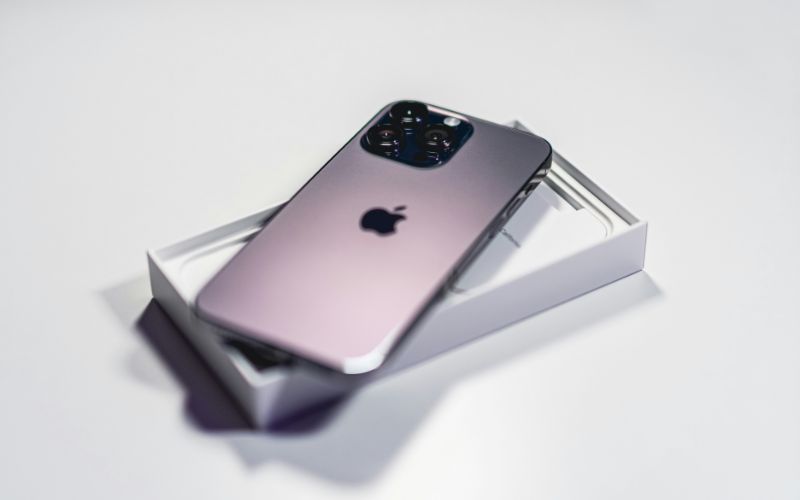
Yes, all iPhone 14 models support eSIM technology, allowing users to activate a digital SIM instead of inserting a physical card.
Many people also ask, is iPhone 14 eSIM only, and the answer depends on the region. In the United States, iPhone 14 models are exclusively eSIM-only and do not include a physical SIM tray. However, international versions typically support both a physical SIM card and eSIM functionality.
Another common question is, how many eSIMs can iPhone 14 have. The iPhone 14 can store multiple eSIM profiles on the device, though only two active SIMs (for example, two eSIMs or one eSIM and one physical SIM on international models) can be used at the same time.
This flexibility allows users to manage personal and work numbers or switch between carriers more conveniently without changing SIM cards.
3. How to Get a Free eSIM for Your iPhone
If you already own an iPhone, you may not need a new device to get connected. Through the BYOD (Bring Your Own Device) option at TAG Mobile, eligible users can activate service using their existing phone and receive a free eSIM, depending on compatibility and availability.
Step 1: Check Your iPhone’s Compatibility (IMEI Check)
Before starting the process, you need to confirm that your iPhone is compatible with TAG Mobile’s network. You can do this by locating your device’s IMEI number in your phone settings and entering it into the online compatibility checker on the TAG Mobile BYOD page.
The system will verify whether your iPhone supports the required network bands and eSIM activation.
Step 2: Start the BYOD Enrollment Process
After confirming compatibility, proceed with the online application. You enter your ZIP code to confirm service availability in your area, then select the appropriate plan based on your eligibility. During enrollment, choose the BYOD option instead of selecting a new device.
If your iPhone supports eSIM, you can request digital activation instead of a physical SIM card.
Step 3: Complete Application & Activate Your eSIM
Lastly, you provide your personal information and upload any required eligibility documents if prompted. Once approved, you will receive instructions to download and activate your eSIM profile directly on your iPhone.
Activation usually involves scanning a QR code or following guided steps in your iPhone’s cellular settings. After installation, your phone will connect to the network without needing a physical SIM card.
4. How to Activate eSIM on iPhone 14 (Full Steps in 2026)
Activating an eSIM on your iPhone 14 is a straightforward process that most users can complete in just a few minutes. Because U.S. versions are designed as iPhone 14 SIM free models without a physical SIM tray, setting up a digital eSIM is the primary way to connect your device to a carrier.
Step 1: Connect to a Stable Wi-Fi Network
You should first connect your iPhone 14 to a stable and secure Wi-Fi network. The device requires an active internet connection to communicate with your carrier and download the eSIM profile.
If the Wi-Fi connection is weak or unstable, the installation process may pause or fail, so it is important to ensure strong connectivity before proceeding.
Step 2: Go to Settings → Cellular → Add eSIM
Next, you need to open the Settings app on your iPhone. From there, tap Cellular (or Mobile Data, depending on your region), and then select Add eSIM. Your iPhone will automatically launch the activation interface and guide you through the setup process step by step.
Step 3: Scan the QR Code or Enter Details Manually
At this stage, your carrier typically provides a QR code that contains your eSIM activation details. You can use your iPhone’s built-in camera within the setup screen to scan this code. If a QR code is not available, you may manually enter the SM-DP+ address and activation code provided by your carrier.
Step 4: Download and Install the Carrier Plan
Once you confirm the activation details, your iPhone will begin downloading the carrier profile. During this time, the device securely installs the eSIM configuration into its system. After installation, the new plan will appear under your Cellular settings, and you can label it as personal, work, or travel if desired.
Step 5: Restart the Device and Test Connectivity
Finally, you should restart your iPhone to ensure the eSIM activates properly on the network. After the reboot, check the signal bars displayed at the top of your screen. You can then make a test call, send a message, or browse using mobile data to confirm that your service is working correctly.
5. Common eSIM Problems in iPhone 14 and Quick Fixes
Even though activation is usually simple, some users may experience minor eSIM issues on their device. If you are still asking, does iPhone 14 have eSIM, the answer is yes, but proper setup and network compatibility are important for smooth performance.
Problem 1: The eSIM activation fails during setup
Some users may notice that their iPhone does not scan the QR code or download the carrier profile successfully.
Fix: You should first ensure that your iPhone is connected to a strong and stable Wi-Fi network. You can restart your device and attempt to scan the QR code again. If the issue continues, you should contact your carrier and request a new activation code.
Problem 2: The iPhone shows “No Service” after installation
In some cases, the eSIM appears installed, but the device does not connect to the network.
Fix: You should restart your iPhone to refresh the network connection. Then, go to Settings → Cellular and confirm that the eSIM line is turned on. You can also toggle Airplane Mode on and off to reset the signal.
Problem 3: The “Add eSIM” option does not appear in Settings
Some users may not see the Add eSIM option under Cellular settings.
Fix: You should update your iPhone to the latest iOS version, as outdated software can hide certain features. You may also need to check with your carrier to confirm that your plan supports eSIM activation.
Problem 4: Mobile data works slowly or not at all
Some users may experience slow speeds or no data connection after activation.
Fix: You should confirm that the correct line is selected for Cellular Data in your settings. If the issue persists, resetting Network Settings can help restore proper connectivity.
6. Final Words
If you’ve been asking, does iPhone 14 have eSIM? The answer is yes, and understanding how it works can make activation much easier. eSIM technology offers flexibility, faster setup, and the convenience of managing multiple lines without a physical card.
By following the correct steps and troubleshooting when needed, you can enjoy a smooth mobile experience. For compatible plans, easy activation, and reliable nationwide coverage, explore your options with TAG Mobile. Check your eligibility today and get connected with confidence.
Notice: The government does not cover device costs, only basic service through Lifeline. Any free or discounted devices, upgrades, or top-ups are limited-time TAG Mobile offers and may vary by state, eligibility, and availability. Terms and conditions apply.
- Share This:
-

-

-

-

-


About the author
