

How to Video Call From Android to iPhone: 3 Easy Ways
Video calls between different gadgets need not be complicated and confusing. After understanding how to video call from Android to iPhone, you can use simple applications and facilities to stay connected with clear video and audio at any time and from any location. For easy steps, helpful tips, and reliable connectivity options, you may read the guide/article from TAG Mobile to learn more.
1. Can Android and iPhone Video Call Each Other?
Yes, Android users and iPhone users can definitely video call each other, as most calling applications support multiple operating systems. Unlike other features that rely on the device’s own features, calling applications use the internet as the source of connection for users of any mobile device. Therefore, as long as the users of the two devices have the same application installed on their devices with an internet connection, video calling is enabled.
2. Method 1 – Join FaceTime From Android
Although Apple FaceTime is primarily designed for iPhone users, Android users can still join calls by using a shared link. This allows users to connect across devices without needing to install any additional apps, as long as the iPhone user sends the invite first.
Step 1: Create A FaceTime Link
Firstly, the iPhone user opens the FaceTime application on their device. The user clicks on Create Link, which creates a shareable invitation for the video call. The link enables users of non-Apple devices to participate in the call using a web browser.
Step 2: Share the link with Android devices
Then, the iPhone user sends the link via text message, email, or any other messaging application. All you need to do at this step is receive the link on your Android device. You don’t need to have an account or download anything at this step.
Step 3: Open the link in your Android browser
Once you have received this link, you simply click on it and open it with your mobile browser. This will load the FaceTime web interface. This process allows Android users to be able to use this call without having to download an app.
Step 4: Enter your name and join the call
Lastly, you type in your name, give permission to use the camera and microphone, and press Join. The iPhone user will let you into the call, and the video chat will start. Then, you can talk face-to-face like a normal video call.
3. Method 2 – Use Message Apps: WhatsApp or Messenger
For a more convenient and flexible option, the use of a messaging application is quite effective for video calling across different platforms. WhatsApp Messenger and Facebook Messenger are just some of the applications available for both Android and iPhone, which can be a good option for learning how to video call from Android to iPhone without any compatibility issues.
Step 1: Install the same app on both devices
First, both of you need to download the same messaging app on your respective app stores. The use of the same messaging app is essential to ensure that the video calling feature functions well on both devices. After the app is downloaded, both of you need to launch the app and sign in with your phone numbers.
Step 2: Add or find the contact
Next, you need to find the person you want to call in your contact list. Most apps will automatically sync your contacts for ease of access. After finding them, you need to open your chat conversation.
Step 3: Tap the video call icon
Within the conversation, you have to tap on the “Video Camera” placed on top. This instantly initiates a video call request, in which the next person simply has to tap to accept, and you’re connected.
4. Method 3 – Use Meeting Apps: Google Meet or Zoom
If you want a more stable and feature-rich option for how to video call from Android to iPhone, meeting apps are another reliable way to connect across devices.
Platforms like Google Meet and Zoom Meetings work smoothly on both Android and iPhone, making them a practical choice when learning how to video call from Android to iPhone for longer or group conversations.
Step 1: Install the meeting app on both phones
Firstly, both parties will need to download and install the same meeting application from their respective app stores. This will ensure compatibility and better performance during the call. After installing the application, you will only be required to log in or register for an account for free.
Step 2: Start or schedule a meeting
The next step is to open the application and then select New Meeting or Start Meeting, which creates a new meeting. Some of these apps also allow users to schedule meetings in advance. This creates a new private room in which the two individuals can communicate.
Step 3: Share the meeting link or code
After creating the meeting, you copy the invite link or meeting code and send it to the other person. They can join simply by tapping the link. This makes it easy to connect without manually searching for contacts.
Step 4: Join the call and enable the camera/microphone
Finally, you tap “Join,” allow camera and microphone permissions, and then begin the call. Once you’re connected, you can enjoy video, audio, and even more features like screen sharing or group chats. These types of apps can be very helpful with calls or meetings that last a while, as well as with multiple people.
>>> Read More: How to Tell If You Are on a 3-Way Call Android: A Security Check
5. Tips for Better Video Call Quality
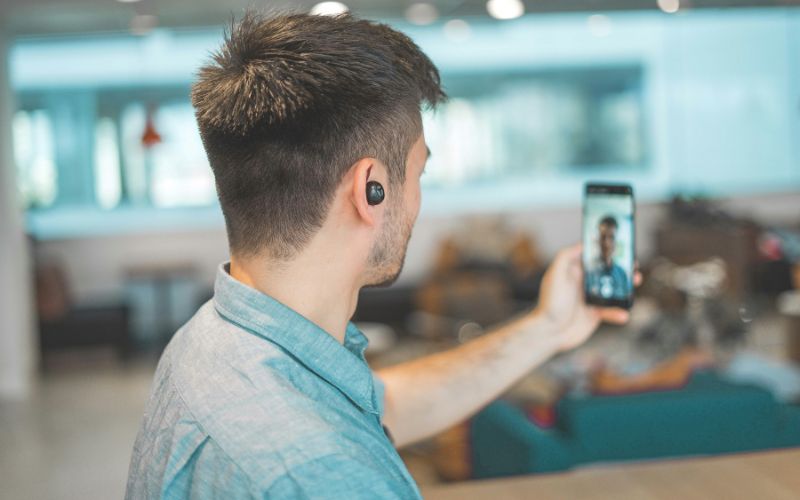
A smooth video call is dependent on the video call app used, as well as the quality of the internet connection and the device’s performance. There are simple steps that one can undertake in order to have a smooth process of how to video call from Android to iPhone without freezes.
- Instead, use a strong Wi-Fi connection to connect to the internet rather than using your mobile data
- If you are experiencing poor signal strength and are often buffering, move closer to your Wi-Fi router or change your location
- Closing unused apps running in the background will enhance the performance of your call
- Ensure your camera lens is clean to provide a sharper and clearer video to the person on the receiving end
- Use headphones or earbuds to reduce echo effects and enhance the quality of the sound
- Adjust the video settings to a lower resolution in the app settings, as it can reduce the chances of lag or call drop in case of slow internet connectivity
- Make sure your phone is charged or plugged in, as it can affect the performance of the app in low battery mode
6. If Video Calls Keep Failing, Your Device or Plan Might Be the Issue
If your video calls are freezing, lagging, or cutting off frequently, the app might not be the real culprit. The device you are using could be the real issue, especially if it’s older or lacks the performance needed for modern apps.
Even if you know how to video call from Android to iPhone, outdated hardware and weak signals can still struggle with the stable connection that video calls require. When your network is unstable, calls may disconnect, freeze, or become blurry, making conversations frustrating and unclear.
In many cases, it is worth it to upgrade your device or get a more reliable plan. Companies like TAG Mobile offer free phones with talk, text, data, and access to the Lifeline program, so you won’t have to worry about the cost of staying connected. When you have a more reliable service with better data access, video calls become clearer and more enjoyable.
7. Final Words
Video calls have never been easier than they are now to stay connected to people who matter most to you, despite the fact that you may be using different types of devices to stay connected. Once you know how to video call from Android to iPhone, you can do it seamlessly without any worries about compatibility or any complex steps to follow. If you are looking for affordable plans and connectivity options, you may want to consider options like TAG Mobile to stay connected at all times.
Notice: The government does not cover device costs, only basic service through Lifeline. Any free or discounted devices, upgrades, or top-ups are limited-time TAG Mobile offers and may vary by state, eligibility, and availability. Terms and conditions apply.
- Share This:
-

-

-

-

-

About the author
