

How to Call Forward on iPhone: Easy Setup in Under 60 Seconds
Missing an important call can be very frustrating, especially when you are away from your phone or even when you are traveling. If you are not sure how to call forward on iPhone, you can easily redirect calls to another number using the built-in settings. This is a very helpful feature that can make you more accessible. To get more information, you can follow a detailed guide from TAG Mobile.
1. What Is Call Forwarding on iPhone?
Call forwarding on an iPhone is a carrier-supported feature that enables the forwarding of incoming voice calls to another phone number. This could be a landline phone, a work phone, or even another mobile device. When the call forwarding feature is enabled on an iPhone, the device will not ring, and the calls are automatically forwarded to the selected number.
Now, when you ask yourself what does call forwarding mean, it simply means forwarding your calls to another place rather than answering them on your current device.
And when you are looking for a device to handle features like call forwarding in a smooth manner, you can even look at affordable options like the iPhone and plans from TAG Mobile, which can help users stay connected with reliable service.
>>> Read More: How To Get Free iPhone Plans At A $0 Bill [Latest Guide]
2. How to Turn On Call Forwarding on iPhone (Step-by-Step)
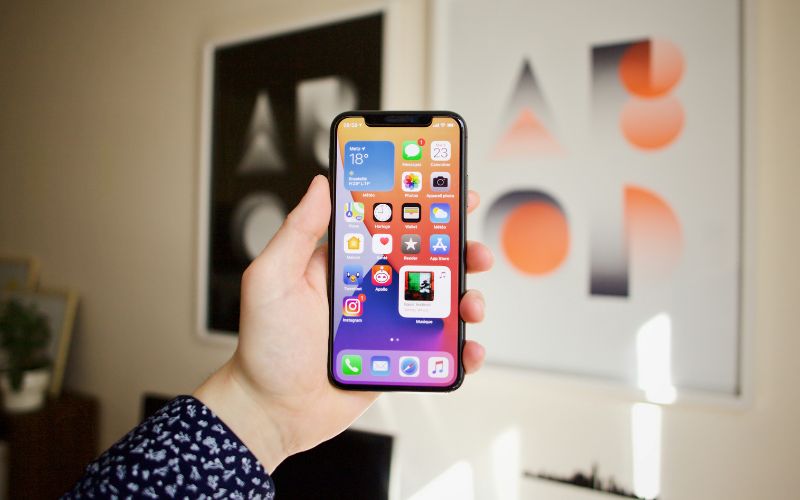
Setting up call forwarding on your iPhone only takes a minute and can help you avoid missing important calls when you’re busy or away from your device.
If you’re learning how to set up call forwarding on iPhone, just follow the simple steps below using the built-in settings from Apple.
Step 1: Open the Settings App
The first step is to open the Settings app on your iPhone device. This is where all the features of the system, including the calling features, are managed.
Step 2: Go to Phone Settings
The next step is to scroll down and select the Apps option, then select Phone. This is where the call features, like voicemail, blocking, and forwarding, are managed.
Step 3: Turn on the Call Forwarding Feature
The next step is to select the Call Forwarding feature, then toggle the Call Forwarding toggle to ON. Once the feature is enabled, a small forwarding icon is displayed in the status bar to confirm the activation of the feature.
Step 4: Select your line (Dual SIM models only)
If you have a Dual SIM iPhone, you select your line. This is to ensure that only your selected line is forwarding calls.
Step 5: Enter the forwarding number
You then select Forward To, enter the phone number you wish to have calls forwarded to, and then press Back. This is the final step for forwarding calls on iPhone, and calls will now directly go to that number.
Please note that you have to stay within your carrier’s coverage area for this feature. If your carrier has conditional forwarding, you may have to contact your carrier for further instructions on how to call forward on iPhone.
3. When Call Forwarding Doesn’t Work (Common Fixes)
Call forwarding is usually easy to activate, but sometimes it doesn’t work as expected due to small settings or network issues. If you’re unsure what is call forwarding iPhone or are still having trouble after learning how to call forward on iPhone, these common problems and quick fixes can help you get everything working smoothly.
An incorrect forwarding number causes calls to fail
Your iPhone will be unable to forward the call if the incorrect phone number is entered or the area and/or country code is forgotten. Even the smallest typo will cause the system to fail in forwarding the call properly.
You will need to go back to Settings → Phone → Call Forwarding and enter your full phone number again correctly, including all the necessary digits. Once done, try making a call to check whether the calls are now forwarding as expected.
A weak or unstable cellular signal prevents activation
Your iPhone has to be connected to your network provider’s network to allow call forwarding. If your signal is weak or you are in airplane mode, your iPhone will not be able to register the change.
You need to move to a location where the network signal is stronger, switch off airplane mode, and then try to enable the feature. A stable network connection ensures that the changes are made to the forwarding settings.
Carrier does not support or enable call forwarding
Additionally, some carriers restrict or turn off some of these forwarding capabilities, especially conditional forwarding (busy, unanswered, or unreachable calls). The settings on your iPhone might be correct, but the carrier might be blocking this feature.
You should contact the customer care department of your carrier for concerns about how to call forward on iPhone and ask them to activate the call forwarding service for your number.
Call forwarding toggle is not fully turned on
You may think forwarding is active, but the toggle may not be switched on or saved correctly. Without the feature enabled, your phone will continue to ring normally.
You should revisit Settings → Phone → Call Forwarding, turn the switch fully on, and check for the forwarding icon in the status bar. This icon confirms the feature is active.
The dual SIM line was selected incorrectly
If you have Dual SIM activated, your iPhone will forward calls only from the chosen line. If you select the wrong line, calls from the other number will not be forwarded.
You have to select the right SIM line or phone line inside the Call Forwarding menu before entering the number you want to redirect calls to.
4. Don’t Have a Reliable Phone or Second Line? Free Phone Options Can Help
The call forwarding system works best when you have a reliable backup device or a second line ready to receive your calls. If you’re learning how to call forward on iPhone, but your current device is old or unreliable, and you don’t have another number to forward to, the feature becomes far less useful, since your important calls won’t have anywhere to go.
The good news is that there are affordable options. For instance, users can take advantage of the Lifeline Program, which enables them to access discounted mobile services.
Providers like TAG Mobile offer free smartphones, which can be used to get a second number with call forwarding. Having access to reliable network services and devices, you can stay on top of your calls and never miss an important call.
5. Final Words
Learning how to call forward on iPhone can make a big difference when you need to stay reachable while traveling, working, or using another device. With just a few simple settings, you can divert your calls and never miss a critical conversation. Of course, call forwarding is best enjoyed when one has a phone and a connection that is reliable enough to receive these calls.
This is where affordable options from TAG Mobile can come in handy, providing free phones and a reliable connection of talk, text, and data to those who qualify. Check out TAG Mobile today and stay connected anywhere and everywhere.
Notice: The government does not cover device costs, only basic service through Lifeline. Any free or discounted devices, upgrades, or top-ups are limited-time TAG Mobile offers and may vary by state, eligibility, and availability. Terms and conditions apply.
- Share This:
-

-

-

-

-

About the author
