

How to Get IMEI on iPhone: A Full Tutorial for All Models
Your iPhone’s IMEI number plays an important role when activating service, switching carriers, checking device compatibility, or reporting a lost or stolen phone. If you’re not sure how to get IMEI on iPhone, there are several easy ways to locate it directly in your settings or on the device itself.
Knowing where to find this number can save time and prevent setup issues. For clear, step-by-step instructions and helpful tips, you can refer to the detailed guide and article from TAG Mobile to learn more.
1. What Is an IMEI Number and Why Does It Matter on iPhone
An IMEI (International Mobile Equipment Identity) number is a unique 15-digit code assigned to every iPhone and other cellular-enabled devices. You can think of it as your phone’s digital fingerprint, because no two devices share the same number. Mobile carriers and manufacturers use this identifier to recognize each device on their networks and distinguish it from millions of others worldwide.
This number is especially important for security and service purposes. Your IMEI helps carriers verify device authenticity, check network compatibility, activate service, or block a phone if it is lost or stolen. Knowing your IMEI also makes it easier to troubleshoot issues or switch providers, which is why understanding where to find it can save you time and protect your device in the long run.
2. How to Get IMEI Directly on Your iPhone
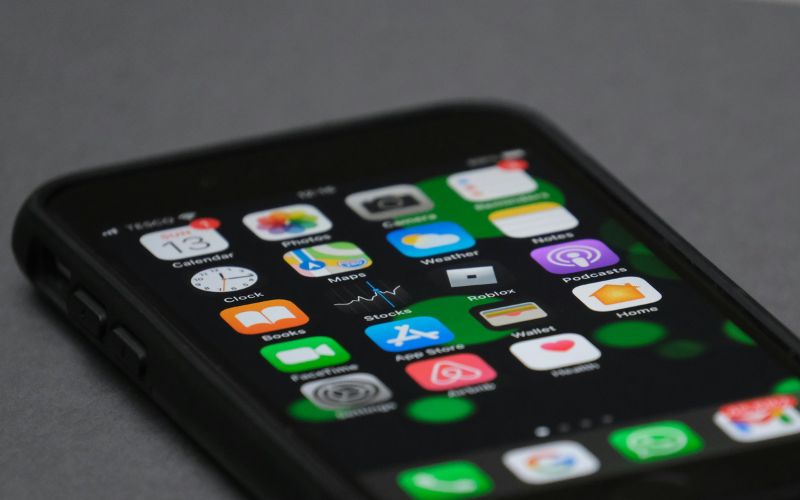
Finding your IMEI directly on your iPhone is quick and doesn’t requi/e any extra apps or tools. If you’re learning how to get IMEI on iPhone, you can use either the Settings menu or a simple dial code to see the number in seconds on devices from Apple.
Check IMEI in iPhone Settings
You open the Settings app and tap General, then select About to view your device information. You scroll down until you see the IMEI field listed along with your serial number and other details. You can tap and hold the number to copy it, which makes it easy to paste into a form when activating service or checking compatibility.
Dial *#06# to Display IMEI Instantly
You open the Phone app and enter *#06# on the keypad just like dialing a number. Your iPhone automatically displays your IMEI on the screen without placing a call. This method is the fastest option when you need the number quickly, especially during setup or customer support requests.
3. How to Get IMEI Without Access to Your iPhone
Sometimes you may not have your iPhone in hand because it’s lost, damaged, or out of battery. In these situations, you can still find your device information using a few alternative methods, which are just as helpful as learning how to get IMEI on iPhone directly from the phone itself.
Find IMEI Using Your Apple Account Online
You can sign in to your Apple account from any browser using your credentials provided by Apple. After logging in, you open your device list and select your iPhone to view its details, including the IMEI and serial number. This method is especially useful if your phone is missing or you need the number quickly for reporting, activation, or support.
Find IMEI on the Original iPhone Box
You can also check the original iPhone packaging if you still have it. Apple prints the IMEI, serial number, and other identifiers on a sticker attached to the side or back of the box. This physical label gives you easy access to the information even when the device is unavailable or cannot be turned on.
>>> Also read: Online Application Form to Get Free Tablet: Apply Guide in 4 Easy Steps
4. How to Find IMEI Using Finder, iTunes, or Apple Devices App
If your iPhone isn’t accessible or you prefer using a computer, you can still check your IMEI through Apple’s desktop tools. Using Finder, iTunes, or the Apple Devices app lets you view your device information safely and accurately in just a few steps.
Step 1: Connect your iPhone to your computer
You plug your iPhone into your Mac or PC using a USB or Lightning cable. Your computer needs to recognize the device before you can view its details.
Step 2: Open the correct app based on your device
If you use a Mac with macOS Catalina 10.15 or later, you open Finder. If you use a Mac with macOS Mojave or earlier, you open iTunes. If you use a Windows PC, you open the Apple Devices app or the latest version of iTunes.
Step 3: Locate your device in the app
You select your iPhone from the sidebar or device list once it appears. In Finder, you make sure you are on the General tab to see your device summary and information.
Step 4: Click the model or device information
You click the model name or device details shown under your device name. The app then reveals additional identifiers such as the serial number and other technical information.
Step 5: View the IMEI number
For an iPhone, you click Phone Number or the device information field until the IMEI/MEID appears on the screen. You can copy this number for activation, support, or service verification whenever needed.
5. When You May Be Asked for Your iPhone IMEI
Your iPhone’s IMEI is more than just a random string of numbers. It plays an important role whenever you set up, secure, or manage your mobile service. Understanding when you might need it helps you stay prepared and know how to get IMEI on iPhone quickly when the situation comes up.
Carrier activation or troubleshooting
Carriers often request your IMEI when you activate a new line or transfer service to your device. They use this number to confirm that your iPhone is compatible with their network and not locked or blacklisted. During troubleshooting, support teams may also check the IMEI to identify your exact device model and resolve technical issues faster.
Reporting a lost or stolen phone
If your iPhone is lost or stolen, the IMEI becomes essential for protecting your information. Your carrier can use it to block the device from accessing mobile networks, which helps prevent unauthorized use. This step also increases the chance of recovery and discourages theft because the phone becomes harder to resell.
Verifying device eligibility
Some services or promotions require you to confirm whether your phone qualifies before you sign up. Providers use the IMEI to check your device’s status, age, and compatibility with certain plans or features. This verification ensures that everything works properly once you switch or enroll.
Applying for phone-related assistance or services
When you apply for discounted phone programs or support plans, providers may ask for your IMEI to register the device correctly. The number helps link your phone to your account and prevents duplicate or unsupported devices from being added. Having it ready makes the application and approval process smoother and faster.
6. How TAG Mobile Supports Eligible Users With Essential Phone Access
Having your IMEI ready becomes especially important when you plan to activate or switch phone service. Whether you bring your own device or apply for a new line, carriers use this number to check compatibility and connect your phone to the network correctly, so keeping it handy helps avoid delays during setup.
For eligible households, the Lifeline Program helps lower the cost of mobile service by providing a monthly discount on phone or internet plans. As a trusted Lifeline provider, TAG Mobile expands Lifeline benefits by offering generous service plans and device choices for qualified users.
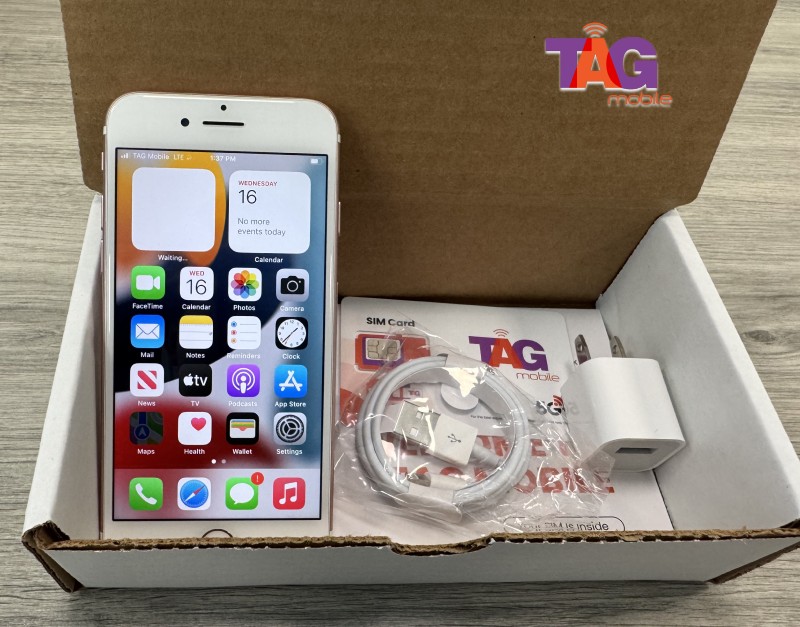
If you prefer to keep your current device, TAG Mobile also supports BYOD (Bring Your Own Device) activation, where your IMEI may be required to confirm compatibility before you start service.
And if you need a new phone, TAG frequently offers free or low-cost smartphones. With reliable coverage and features like talk, text, data, and everyday calling tools, TAG Mobile helps ensure you stay connected without breaking your budget.
Final Words
Knowing your IMEI number gives you better control over your device and mobile service. Whether you’re activating a new line, switching carriers, or securing a lost phone, understanding how to get IMEI on iPhone can save time and prevent unnecessary problems. It’s a small step that makes managing your phone much easier and more secure.
If you’re setting up or transferring service, choosing a reliable provider also matters. With affordable plans, helpful support, and dependable coverage, TAG Mobile makes it simple to get connected and stay worry-free every day.
Notice: The government does not cover device costs, only basic service through Lifeline. Any free or discounted devices, upgrades, or top-ups are limited-time TAG Mobile offers and may vary by state, eligibility, and availability. Terms and conditions apply.
- Share This:
-

-

-

-

-


About the author
