

How to Turn Off Liquid Glass on iPhone (iOS 26 Guide)
Liquid Glass gives iOS 26 a more translucent, fluid appearance, but the effect may not suit every user or screen preference.
Learning how to turn off Liquid Glass really means reducing its transparency and motion, since Apple does not provide a single switch that removes the design entirely. Display, accessibility, and motion settings can make menus and interface elements more opaque, stable, and easier to read.
1. Can You Completely Turn Off Liquid Glass?
No. iOS 26 does not include a single switch that fully disables the Liquid Glass interface across the system.
Instead, Apple manages this visual layer as part of the core design language, meaning it remains active in menus, backgrounds, and navigation elements. What users can do is adjust how it behaves and appears.
The Clear and Tinted options change how transparency and color blending are applied, but they don’t remove the effect entirely. Accessibility settings such as Reduce Transparency replace many translucent surfaces with more solid backgrounds, while Reduce Motion limits some of the fluid transitions associated with the interface.
Together, these adjustments can make the system feel less “glassy” and more static, but the underlying design still remains in place.
>>> Also read: How to Fix Screen Tearing: Simple Solutions That Actually Work
2. How to Turn Off Liquid Glass iPhone
iOS 26 does not include a switch that removes Liquid Glass completely, but several settings can make the interface look less transparent and feel less animated. These adjustments are the most practical option for users searching for how to turn off Liquid Glass iOS 26.
- Open Settings: Go to the Settings app on your iPhone.
- Reduce transparency: Tap Accessibility > Display & Text Size, then turn on Reduce Transparency to make transparent backgrounds more opaque.
- Reduce motion: Return to Accessibility, tap Motion, then enable Reduce Motion to limit fluid morphing and other animated effects associated with Liquid Glass.
- Adjust the Liquid Glass appearance: Go to Settings > Display & Brightness > Liquid Glass and choose Tinted for greater contrast and opacity instead of Clear.
- Compare the result: Move through Control Center, menus, and supported apps to see whether the reduced transparency and motion feel more comfortable.
- Fine-tune as needed: You can keep both accessibility settings enabled, or use only the one that improves readability and visual comfort most.
3. Alternatives if You Can’t Fully Disable Liquid Glass
Even without a full off switch, iOS 26 gives you several ways to make the interface feel less transparent, less animated, and easier to read. Combining a few visual adjustments can create a noticeably calmer experience without changing the overall system design.
Accessibility Features
Accessibility settings offer the strongest controls for reducing Liquid Glass effects. Turning on Reduce Transparency makes translucent backgrounds more opaque, while Reduce Motion limits some animated transitions. For anyone researching how to turn off Liquid Glass, these options provide the closest system-wide workaround.
Display & Brightness Settings
Display settings can also soften the Liquid Glass appearance. Choosing Tinted instead of Clear increases contrast and reduces the see-through effect in supported interface elements, while dark mode may make some menus and controls feel less visually busy.
Wallpaper Choices
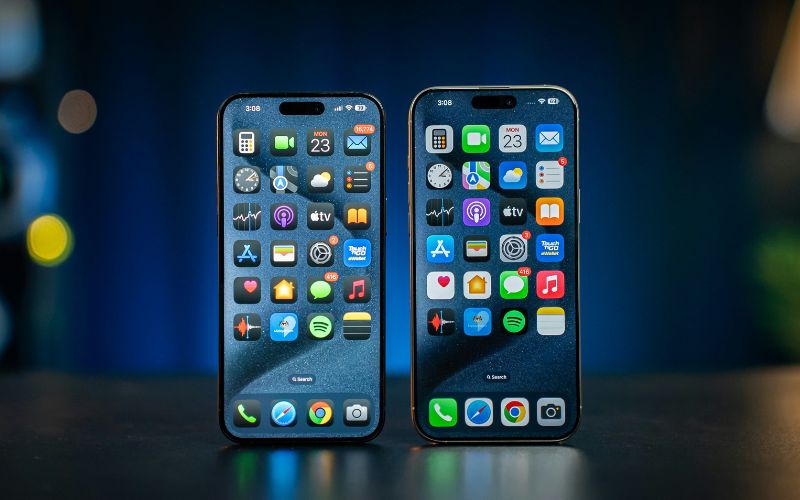
Busy or high-contrast wallpapers can make translucent interface elements harder to read because background colors show through menus and controls. A simpler, darker, or less detailed wallpaper can improve contrast and make Liquid Glass feel less distracting without changing any system settings.
App-Specific Appearance
Some apps offer their own appearance controls, including dark themes, contrast options, or simplified layouts. Adjusting these settings can reduce visual clutter inside individual apps, although they will not remove Liquid Glass from system areas such as Control Center, navigation bars, or menus.
4. Upgrade Your iPhone Experience With the Right Device
Better performance, clearer visuals, and dependable wireless access can make everyday smartphone use feel more convenient. The right device also makes it easier to manage apps, settings, streaming, browsing, and communication throughout the day.
TAG Mobile is a U.S. wireless provider headquartered in Houston, Texas, and a licensed Lifeline provider. It serves qualifying customers with free monthly service, device options, nationwide coverage, no contracts, and no credit checks, while eligible customers may also receive a free smartphone when available.
Lifeline eligibility can come through participation in programs such as Medicaid, SNAP, SSI, Federal Public Housing Assistance, WIC, or Veterans Pension or Survivors Benefit. Households may also qualify when income is at or below 135% of the Federal Poverty Guidelines, with one Lifeline benefit allowed per household.
TAG Mobile currently lists a wide range of Apple, Samsung, Google, and other smartphones, giving customers several choices depending on budget, eligibility, location, and inventory. These options can support everyday app use, browsing, streaming, and mobile settings management.
- Samsung Galaxy A20: A practical Samsung smartphone for everyday apps, calls, browsing, and general mobile use.
- Samsung Galaxy A71 5G: 5G-capable Samsung model suited to streaming, browsing, social apps, and other data-heavy tasks.
- Samsung Galaxy A32 5G: Another 5G option for users who want smooth access to apps, videos, navigation, and everyday communication.
- Apple iPhone XS: Compact iPhone model with access to iOS apps, display settings, streaming services, and Apple’s broader ecosystem.
- FOXXD C67: Straightforward smartphone option for calls, messages, browsing, and routine digital tasks.
- FOXXD A67U: Affordable smartphone choice designed for everyday connectivity, app access, and general mobile use.
- Apple iPhone X: Familiar iPhone experience with access to iOS features, apps, browsing, photos, and entertainment.
- Samsung Galaxy A23 5G: 5G-capable Galaxy model for streaming, browsing, navigation, and daily mobile activities.
- Google Pixel 3: Google smartphone offering a clean Android experience for apps, photography, browsing, and everyday communication.
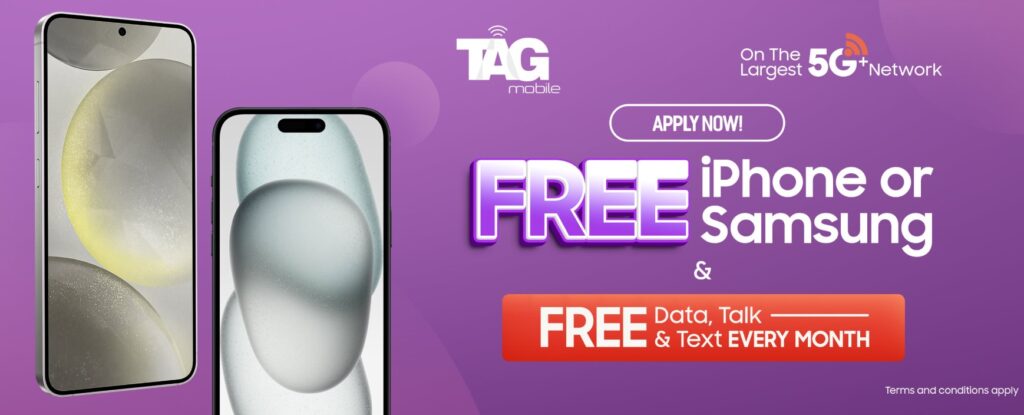
Note: Eligibility varies by state and program. Offers depend on availability and qualifications. TAG Mobile operates under the federal Lifeline Program as an Eligible Telecommunications Carrier (ETC). Service is non-transferable and limited to one service per household.
5. Common Questions About Liquid Glass in iOS 26
Liquid Glass changes the look and motion of many interface elements, but its behavior still depends on your iPhone model, settings, and individual apps. These answers clarify what can be adjusted and what remains part of the iOS 26 design.
Does Liquid Glass work on every iPhone?
Liquid Glass is part of iOS 26, so it appears on iPhones that support and run iOS 26. Apple currently lists iPhone 11 and later, plus iPhone SE 2nd and 3rd generation, as compatible with iOS 26, although specific features can vary by model.
Is Liquid Glass available only in iOS 26?
Liquid Glass debuted as a major design language with Apple’s iOS 26 operating system, including iOS 26. Apple also uses the material across other current platforms such as iPadOS, macOS, watchOS, and tvOS rather than limiting it to the iPhone alone.
Does Reduce Transparency disable Liquid Glass?
No. Reduce Transparency makes translucent backgrounds more opaque, but it does not remove the Liquid Glass design system entirely. You may still see its shapes, layout, and other visual characteristics even after transparency is reduced.
Will turning off visual effects improve battery life?
Reducing motion or other visual effects may lower some graphical activity, but Apple does not promise a specific battery-life improvement from disabling these effects. Battery impact varies by device, usage, and software version, so treat any savings as a possible secondary benefit rather than a guaranteed result.
Final Words
Liquid Glass cannot be fully removed from iOS 26, but transparency, motion, wallpaper, and display adjustments can make the interface feel calmer and easier to read. Knowing how to turn off Liquid Glass therefore means reducing its visual impact rather than disabling the design completely.
For broader mobile access and device options, eligible consumers can explore Lifeline-supported service through TAG Mobile.
- Share This:
-

-

-

-

-


About the author
