

How to Organize Email Inbox Without Feeling Overwhelmed
Daily messages can quickly become distracting when important conversations are buried beneath promotions, alerts, and outdated threads. Over time, this clutter doesn’t just slow you down. It makes it harder to focus, respond on time, and keep track of what actually matters.
This guide will explain how to organize email inbox using practical folders, labels, filters, and simple cleanup routines that reduce clutter without demanding hours of work. You will also discover ways to prioritize urgent emails, manage subscriptions, and maintain a clear system that remains easy to follow over time.
1. Why an Organized Inbox Saves More Than Time?
Inbox clutter affects concentration, decision-making, and the ability to respond when it matters most. Creating a clear email system can improve daily productivity while reducing the mental pressure caused by unread messages and scattered conversations.
- Reduces stress: Fewer unread emails make the inbox feel more manageable and less demanding.
- Prevents missed messages: Important updates, deadlines, and requests are easier to notice and respond to promptly.
- Improves focus: Removing unnecessary alerts and promotions limits distractions during work or personal tasks.
- Supports better decisions: Organized folders and labels provide quick access to the information needed for follow-ups.
- Strengthens communication: Faster replies and clearer message tracking help maintain professional and personal relationships.
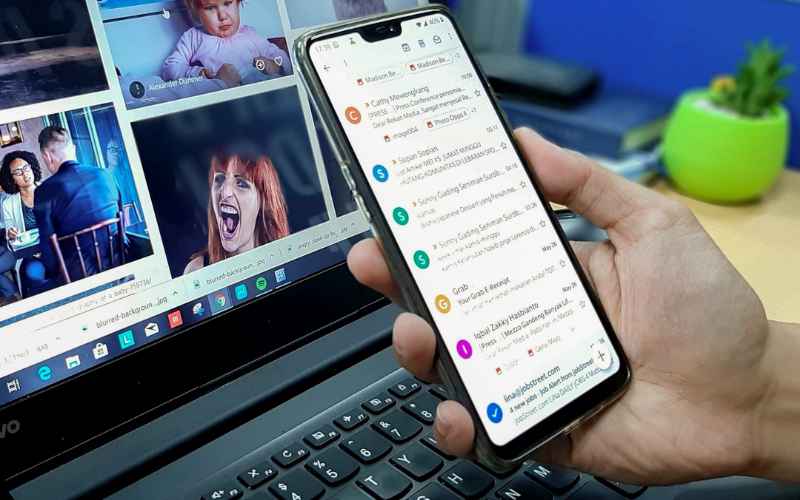
2. How to Organize Email Inbox Effectively
Inbox organization works best when every message has a clear purpose, destination, or next step. Rather than trying to reach zero emails at once, build a simple system that reduces clutter and makes daily follow-up easier.
Delete What You Don’t Need
Remove spam, expired promotions, duplicate notifications, and messages with no future value. Regular deletion prevents unnecessary buildup and makes search results more accurate. Start with obvious clutter, then review older emails in batches so the process feels manageable instead of turning into an exhausting cleanup project.
Archive Older Conversations
Archive completed conversations that may still be useful later but no longer require attention. This keeps the inbox focused without permanently deleting important records. Archived emails remain searchable, making this approach ideal for receipts, project discussions, travel confirmations, and reference material that should stay accessible but out of sight.
Create Folders That Make Sense
Build folders around clear purposes, such as Work, Bills, Travel, Receipts, or Family. Keep the structure simple enough to remember and avoid creating too many narrow categories. Effective folders should help you locate messages quickly, not force you to spend extra time deciding where every email belongs.
Use Labels or Categories
Labels and categories help group related emails without moving them into separate folders. Use them for clients, projects, urgency levels, or follow-up status. Since one message can often carry multiple labels, this system works well for emails that belong to more than one topic or require different types of tracking.
Prioritize Important Messages
Mark urgent emails with stars, flags, or priority indicators so they remain visible. Reserve these tools for messages that need action, contain deadlines, or come from key contacts. Overusing priority markers reduces their value, so review them regularly and remove the indicator once the task is completed.
Keep Your Inbox Action-Oriented
Treat the inbox as a temporary workspace rather than permanent storage. Reply, schedule, delegate, archive, or delete each message whenever possible. Emails that still require action can remain visible or move into a dedicated follow-up folder, helping you understand exactly what needs attention without rereading every conversation.
3. Common Inbox Habits That Create More Clutter
Inbox clutter often grows from small habits that seem harmless in the moment. Recognizing these patterns makes it easier to build a cleaner system and prevent the same mess from returning.
Keeping Too Many Emails
Saving every message creates unnecessary noise and makes important conversations harder to find. Keep only emails that have practical, legal, financial, or reference value. When learning how to organize your work email inbox, regular deletion and archiving should become part of your routine rather than an occasional large cleanup.
Never Unsubscribing
Promotional emails, automated alerts, and newsletters can quickly overwhelm an inbox when left unchecked. Unsubscribe from sources you no longer read or need, and keep only updates that provide real value. Reducing incoming clutter is often more effective than repeatedly sorting the same unwanted messages.
Mixing Personal and Work Emails
Using one inbox for both personal and professional communication can blur priorities and increase the risk of missed messages. Separate accounts help keep work conversations, bills, subscriptions, and family updates organized. Clear boundaries also make searching easier and support better focus during working hours.
Leaving Everything Unread
Keeping messages unread as a reminder often creates confusion instead of clarity. Important emails become mixed with low-priority notifications, making the inbox feel more urgent than it really is. Use stars, flags, folders, or follow-up labels so unread status remains meaningful and easier to manage.
4. Special Rules for Email Management You May Find Useful
Structured methods can make inbox cleanup easier by replacing uncertain decisions with repeatable actions. Each approach below offers a different way to process messages, limit distractions, and maintain a manageable email routine.
The 5 D’s
The 5 D’s method asks you to delete, delegate, defer, do, or designate each email for filing. Instead of repeatedly reopening the same message, choose the appropriate action during the first review. This framework is especially useful when learning how to organize email inbox without creating an overly complicated folder structure.
The 3 21 0 Email Rule
The 3-21-0 method recommends checking email three times daily, spending about 21 minutes on each session, and aiming to finish with zero unprocessed messages. The goal is not necessarily deleting everything, but deciding what to reply to, archive, schedule, delegate, or remove before ending each focused session.
The “Four Folder” System
The four-folder system divides messages into simple action-based groups, such as Inbox, Action, Waiting, and Archive. Emails needing work move to Action, delegated or pending conversations go to Waiting, and completed reference material belongs in Archive. Keeping only a few categories reduces filing decisions and makes follow-ups easier to track.
5. Keep Work and Personal Emails Organized Everywhere with a FREE Phone
Managing messages, checking important updates, and responding promptly becomes much simpler with consistent mobile access. Qualifying households may be able to reduce communication costs through the federal Lifeline Program.
Lifeline is a federal assistance program that provides a monthly discount of up to $9.25 (or up to $34.25 for Tribal citizens) on eligible phone, internet, or bundled service. Only one Lifeline benefit is permitted per household. You may qualify in two main ways:
- Income-based eligibility: Your household income is at or below 135% of the Federal Poverty Guidelines.
- Program-based eligibility: You or someone in your household participates in SNAP, Medicaid, SSI, Federal Public Housing Assistance, Veterans Pension and Survivors Benefit, or certain Tribal programs.
Participation in SNAP is recognized as a valid pathway to qualify for Lifeline benefits, so those enrolled may apply without needing additional qualifications.
Eligible customers can receive Lifeline-supported wireless service through TAG Mobile, an Eligible Telecommunications Carrier (ETC), with access to affordable monthly plans that help reduce communication costs. Depending on eligibility and location, users may also benefit from included talk, text, data, and available device options tailored to their needs.
TAG Mobile plans can support email management, web access, calls, and everyday communication from one device. Current benefits may vary by state, so applicants should enter their ZIP code and review the offer available in their area.
- Up to 16GB of mobile data
- Unlimited talk and text
- Free international calling to more than 200 countries and territories
- Free delivery on qualifying orders
- Free or discounted phone options, subject to availability
- Bring Your Own Device support with an eligible SIM card
- Access to nationwide mobile coverage and essential online services

Note: Eligibility varies by state and program. Offers depend on availability and qualifications. TAG Mobile operates under the federal Lifeline Program as an Eligible Telecommunications Carrier (ETC). Service is non-transferable and limited to one service per household.
>>> Read more: Free Government Phone Customer Service: How to Get Help Fast and Easily
6. Frequently Asked Questions about Managing Emails
High email volume becomes easier to control when cleanup methods match the size and purpose of the inbox. These answers cover practical ways to reduce clutter, structure folders, and process incoming messages without creating another complicated system.
What’s the fastest way to clean up thousands of emails?
Start with bulk actions instead of reviewing every message individually. Search by sender, date, subject, or category, then delete promotions, automated alerts, and outdated notifications in batches before archiving older conversations that may still be useful.
Should I archive or delete old emails?
Archive messages that may provide future reference, such as receipts, contracts, project discussions, or travel confirmations. Delete spam, expired offers, duplicate notifications, and emails with no practical, financial, or legal value.
What’s the best folder structure for work email?
Use a small action-based structure such as Action Required, Waiting, Projects, Receipts, and Archive. Organizing by purpose rather than creating a folder for every sender makes messages easier to process and prevents the system from becoming difficult to maintain.
How many folders should I create?
Begin with four to seven main folders and add another only when a clear need appears. Too many folders increase filing decisions, create overlapping categories, and make messages harder to locate, rather than improving organization.
How to manage 100 emails a day?
Schedule two or three focused email sessions instead of constantly checking throughout the day. Process quick replies immediately, delegate suitable requests, flag messages requiring more work, and use filters to route newsletters, notifications, and routine updates automatically.
How do I clean up thousands of emails?
Sort the inbox by oldest date, largest attachment, frequent sender, or unread status to identify major sources of clutter. Unsubscribe first, remove low-value messages in bulk, archive useful records, and then create filters to prevent the same buildup from returning.
Final Words
Building a simple routine around deleting, archiving, labeling, and prioritizing messages can keep your inbox clear without adding extra stress. This guide on how to organize email inbox helps you create a system that stays manageable over time. For smoother access to email, calls, and essential online tasks, explore available communication options through TAG Mobile, where eligibility and availability apply.
- Share This:
-

-

-

-

-


About the author
