

How to Use Google Authenticator Transfer? Explore 7 Useful Tips
Switching phones without moving your security codes properly can create login problems across important accounts. Many users search for how to use Google Authenticator transfer to safely move two-factor authentication settings safely between devices in 2026.
Google now offers built-in transfer tools that make the process faster on both Android and iPhone. Readers can also explore additional security tips, mobile guidance, and detailed technology resources through TAG Mobile articles for more helpful information.
1. What Is Google Authenticator?
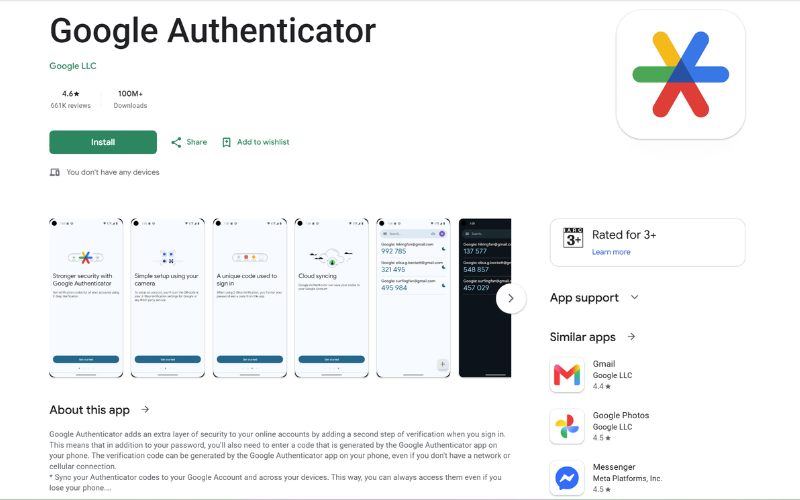
Google Authenticator is a two-factor authentication app that generates temporary verification codes to help protect online accounts from unauthorized access. Instead of relying only on passwords, the app adds an extra security layer for email, banking, social media, and other sensitive accounts.
QR codes simplify transfers because they allow users to quickly move account information from one phone to another without manually entering long setup keys. Scanning a QR code during setup reduces errors, saves time, and makes switching devices much easier in 2026.
2. How to Use Google Authenticator Transfer to a New Phone?
Changing phones does not have to mean losing access to important accounts protected by two-factor authentication. People searching for how to use Google Authenticator transfer can move verification codes safely in just a few minutes by using Google’s built-in QR transfer feature.
Open the App on the Old Device
Start by opening Google Authenticator on the phone currently storing your verification codes.
Before beginning the transfer, review the account list carefully to confirm every connected service still appears inside the app. This step helps reduce the risk of missing important accounts during migration.
Keeping the old device nearby is necessary because it will generate the secure transfer information used later in the process. Users should also make sure the phone remains unlocked and fully functional until the transfer finishes successfully on the new device.
Tap the Menu or Settings Section
After opening the app, locate the menu icon or settings section where account management tools are stored.
Google Places transfers features inside this area, so users can securely export authentication details without manually resetting each connected account one by one.
Different phone models may display the menu slightly differently depending on the operating system version.
Select “Transfer Accounts”
Inside the settings menu, choose the “Transfer accounts” option to begin the migration process. The app normally separates export and import functions to make moving authentication data between devices easier and more organized for users changing phones.
On the old device, select the export option to prepare account information for transfer. Some phones may request fingerprint verification, face recognition, or a screen lock confirmation before allowing the process to continue for additional security protection.
Generate the Export QR Code
Once the export feature is selected, Google Authenticator automatically creates a QR code containing encrypted transfer information. This method allows accounts to move quickly between devices without typing long setup keys manually for every connected service.
Phones with many saved accounts may generate more than one QR code during the process.
Users should avoid taking screenshots or sharing the code publicly because anyone with access to the QR code may potentially import those authentication settings elsewhere.
Scan Using the New Device
Open Google Authenticator on the new phone and choose the option to import accounts using a QR code. Use the camera to scan the code displayed on the old device so the app can automatically transfer authentication data within seconds.
After scanning, the new device should immediately begin generating updated verification codes for connected accounts.
Before deleting Google Authenticator from the previous phone, users should test several logins to confirm that the transfer completed properly and that account access remains secure.
3. Common Problems During Google Authenticator Transfers
Transferring authentication codes between phones is usually fast, but small setup mistakes can still create login problems. Learning how to use Google Authenticator transfer correctly can help users avoid failed verification attempts and restore account access more smoothly during device changes or account recovery.
QR Code Scanning Errors
QR code scanning problems often happen when the screen brightness is too low, the camera lens is blurry, or the code is partially cut off.
Older phones may also struggle to focus correctly during the scanning process, especially if the QR code contains many linked accounts.
Keeping both devices steady and increasing screen brightness usually improves scan accuracy immediately. Users should also avoid screenshots with cropped edges because incomplete QR codes may fail to transfer authentication information properly between devices.
Incorrect Device Time Settings
Google Authenticator relies on accurate device time settings to generate valid verification codes. Even a small difference between the phone clock and the official network time can cause login codes to stop working correctly across banking apps, email accounts, and other secure platforms.
Automatic date and time settings should remain enabled on both devices during the transfer process. Restarting the phone or syncing the clock manually through system settings can often fix repeated verification failures caused by incorrect time synchronization.
Missing Backup Access
Many users lose account access after switching phones because they forget to save backup recovery methods before transferring authentication codes. Backup codes, secondary email verification, or linked phone numbers are important safety options if the transfer process fails unexpectedly.
Before removing Google Authenticator from the old device, users should confirm that backup recovery settings still work correctly. Testing recovery options in advance can make account restoration much easier if the new phone is lost, reset, or damaged later.
>>> Read more: How to Call Private on Any Phone: A Step-by-Step Tutorial (2026)
4. 7 Security Tips During Transfers
Moving authentication codes between devices involves sensitive account information that should be handled carefully. People learning how to use Google Authenticator transfer should follow a few security best practices during the process to help reduce the risk of account theft, failed verification, or unauthorized access.
- Complete the transfer in a private and secure location where both phones stay under your control.
- Avoid sending QR screenshots through email, messaging apps, or cloud storage services.
- Enable a PIN, fingerprint, or facial recognition on both devices for added security.
- Confirm login codes work correctly on the new phone before deleting the old setup.
- Store backup login codes in a secure place in case the device is lost or damaged later.
- Correct device time helps Google Authenticator generate accurate verification codes consistently.
- Delete unused authenticator information from old devices after completing the transfer successfully.
Final Words
Learning how to use Google Authenticator transfer correctly can help make switching devices safer, faster, and less stressful when managing protected online accounts. Following proper transfer steps, verifying login codes carefully, and keeping backup recovery options available may help reduce authentication problems after moving to a new phone.
Users looking for affordable wireless connectivity and dependable smartphone access can also explore flexible options available through TAG Mobile.
Note: Eligibility varies by state and program. Offers depend on availability and qualifications. TAG Mobile operates under the federal Lifeline Program as an Eligible Telecommunications Carrier (ETC). Service is non-transferable and limited to one service per household.
- Share This:
-

-

-

-

-


About the author
