

How to Transfer eSIM: A Seamless Guide to Your New Phone
If you’re looking for how to transfer eSIM, it’s important to understand that the process varies depending on whether you’re switching devices, platforms, or carriers. Some smartphones support direct eSIM transfer during setup, while others require the carrier to issue a new activation QR code.
Before starting, you should confirm device compatibility and ensure your account is in good standing to prevent service interruptions. Because carrier policies and model support can differ, reviewing clear step-by-step guidance can help you complete the transfer smoothly. For detailed instructions and helpful tips, refer to the full article from TAG Mobile below to learn more.
1. Before You Transfer: What to Check
Before starting the process, it’s important to prepare your devices properly to avoid activation errors or service interruptions. Many users ask, Can you do eSIM transfer?, and the answer depends largely on whether a few key requirements are met in advance.
- Confirm the New Phone Supports eSIM: Make sure your new device includes built-in eSIM hardware. Check the settings menu for an “Add eSIM” or similar option to verify compatibility.
- Ensure the Device Is Unlocked: A carrier-locked phone may block eSIM activation from another provider. Contact your carrier to confirm the device is fully unlocked before attempting the transfer.
- Connect to Wi-Fi: A stable internet connection is required to download the eSIM profile securely. Weak or unstable Wi-Fi can interrupt the transfer process.
- Update Software: Install the latest operating system update on both your old and new devices. Software updates often include carrier configuration improvements that support smoother eSIM transfers.
- Keep the Device Powered On: Ensure both phones have sufficient battery life or are connected to a charger. Interruptions caused by shutdowns can delay or complicate the transfer process.
>>> Read More: How Many eSIMs Can iPhone 15 Have? Setup And Helpful Tips
2. How to Transfer eSIM From iPhone to iPhone
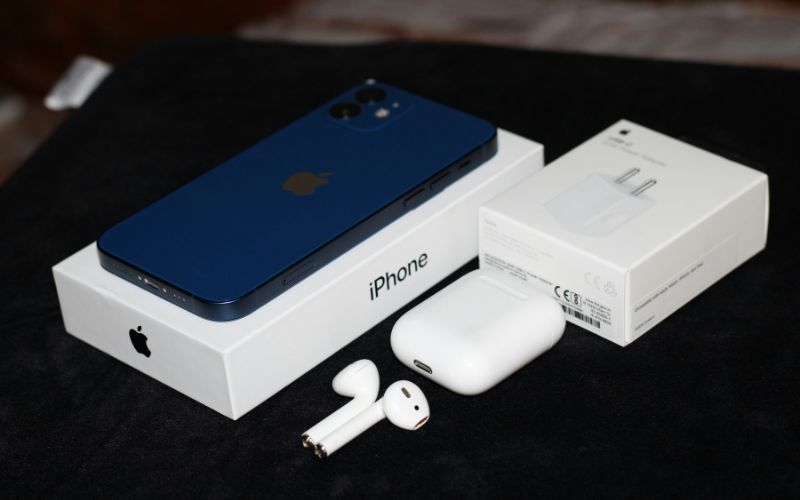
Transferring a digital SIM between two iPhones is usually the simplest type of eSIM move. Apple’s built-in tools allow you to transfer eSIM to new iPhone during the initial setup process without needing a QR code in many cases.
Turn On the New iPhone
Start by powering on your new iPhone and placing it near your current device. Make sure Bluetooth is enabled on the old phone, as Apple uses proximity detection to begin the setup process. Both devices should have sufficient battery and be connected to Wi-Fi for a smooth transfer.
Use the Quick Start Setup
When the new iPhone displays the Quick Start screen, your old iPhone will prompt you to begin setup. Follow the on-screen instructions to authenticate with Face ID, Touch ID, or your Apple ID credentials. During this stage, Apple prepares your data and cellular settings for transfer.
Select Cellular Plan Transfer
As you continue through setup, you’ll see an option to transfer your cellular plan. Choose the eSIM line you want to move to the new device. This step initiates the digital transfer request through your carrier’s system.
Confirm on the Old Device
Your old iPhone may display a confirmation prompt asking you to approve the transfer. Tap Transfer or Confirm to authorize moving the eSIM to the new phone. Once approved, the eSIM profile is removed from the old device and reassigned to the new one.
Wait for Activation
After confirmation, the new iPhone will activate the eSIM profile. Activation usually takes a few minutes, depending on the carrier’s processing speed. When signal bars appear, and the carrier name is visible, the transfer eSIM to new iPhone process is complete, and your line is ready to use.
3. How to Transfer eSIM From Android to Android
Moving a digital SIM between two Android devices can be simple, but the exact process depends on the phone brand and carrier support. Many users ask, How do I transfer an eSIM to another phone?, and the answer usually involves either a built-in transfer feature or carrier reprovisioning.
Open Settings → Network & Internet
Start by unlocking your new Android device and opening the Settings app. Tap Network & Internet (or Connections, depending on the manufacturer). This section manages mobile network settings and SIM profiles.
Select Add eSIM
Next, select SIMs or SIM Manager, then tap Add eSIM or Download a SIM. If your device supports direct transfer, it may detect an existing eSIM from your old Android phone. Make sure both devices are nearby, powered on, and connected to Wi-Fi.
Choose Transfer Option (If Available)
Some Android models offer a built-in transfer option that allows you to move the eSIM digitally from the old phone to the new one. If this feature appears, follow the on-screen instructions to approve the transfer on your previous device. The system will then reassign the digital SIM profile automatically.
Or Request a New QR Code from the Carrier
If a direct transfer option is not available, contact your carrier to request eSIM reprovisioning. The carrier will typically deactivate the eSIM on your old device and generate a new QR code tied to your new phone’s IMEI. This is the most common method for Android-to-Android transfers.
Confirm Activation
After scanning the QR code or completing the transfer steps, your new device will download and install the eSIM profile. Wait for signal bars and the carrier name to appear on the screen. Once confirmed, your eSIM is successfully activated on the new Android phone.
4. How to Transfer eSIM Between iPhone and Android
Transferring an eSIM between different operating systems is more complex than moving it between two devices of the same brand. Many users searching for ” How to transfer eSIM from one phone to another mobile? may not realize that cross-platform transfers almost always require carrier involvement.
No Direct One-Tap Transfer
Unlike iPhone-to-iPhone transfers using Quick Start, there is no built-in one-tap option when switching between iPhone and Android. The two systems use different provisioning methods, so the eSIM profile cannot simply be “moved” wirelessly. Instead, the digital SIM must be reassigned by the carrier.
Contact the Carrier for Reprovisioning
The next step is to contact your mobile carrier through their app, website, or customer support. Inform them that you are switching devices and need your eSIM reprovisioned. In most cases, the carrier will deactivate the eSIM on your old phone and generate a new activation profile tied to your new device’s IMEI.
Scan the New QR Code
Once the carrier provides a new QR code, open the eSIM setup section on your new phone. Scan the QR code or enter the activation details manually, depending on your device. After installation completes and signal bars appear, your line is successfully transferred and ready to use on the new device.
5. Switching Phones? Some Devices Come Ready With Service
Switching phones can sometimes feel overwhelming, especially when it involves transferring data, moving your eSIM, and making sure your new device activates correctly. Instead of handling every step manually, choosing a device that comes ready with service can simplify the entire process.
For eligible individuals, the federal Lifeline Program offers free or discounted monthly wireless service to help maintain reliable communication. TAG Mobile participates in Lifeline and provides compatible smartphones for qualified applicants.
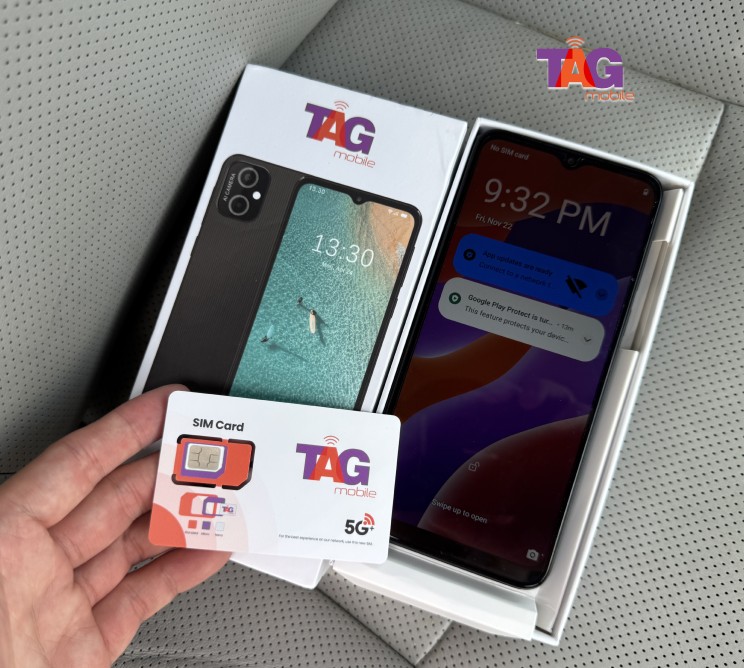
When you apply for a device through TAG Mobile and meet eligibility requirements, you may receive a free phone with eSIM already activated on supported models. That means you can power on your new device and start using talk, text, and data right away, without worrying about manual eSIM transfers or complex setup steps.
6. Final Words
Knowing how to transfer eSIM can make the process of switching devices or service providers much easier. This is because the process can involve the use of transfer tools, and it is always important to be prepared in advance to avoid disruptions in services.
By taking the right steps, you can transfer the eSIM quickly and securely. If you need more information, compatible devices, and flexible eSIM plans, you can find the information you need at TAG Mobile to stay connected with confidence.
Notice: The government does not cover device costs, only basic service through Lifeline. Any free or discounted devices, upgrades, or top-ups are limited-time TAG Mobile offers and may vary by state, eligibility, and availability. Terms and conditions apply.
- Share This:
-

-

-

-

-


About the author
